TABLE OF CONTENTS
Scheduling a Practice Session
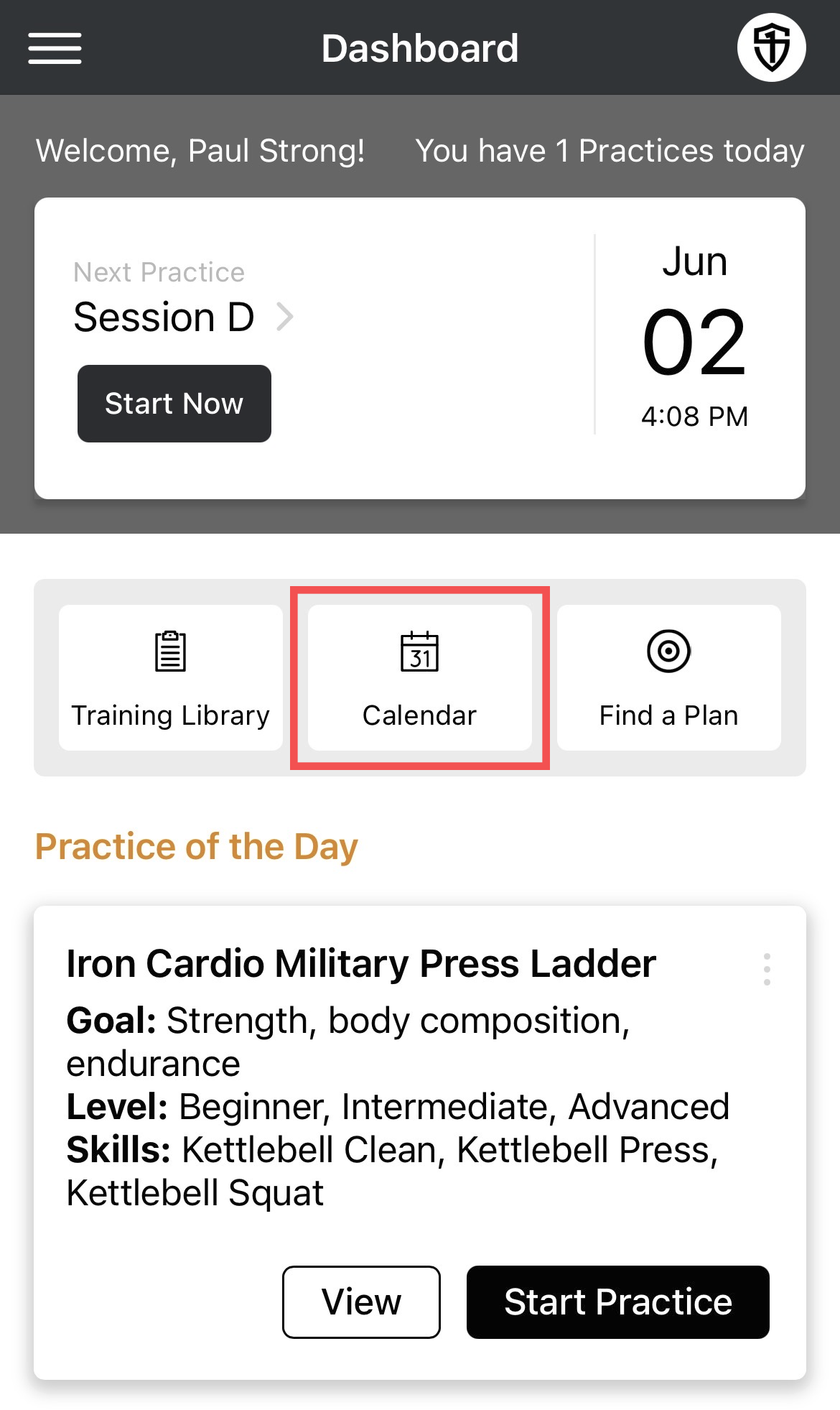
- Tap the Calendar button on the dashboard.
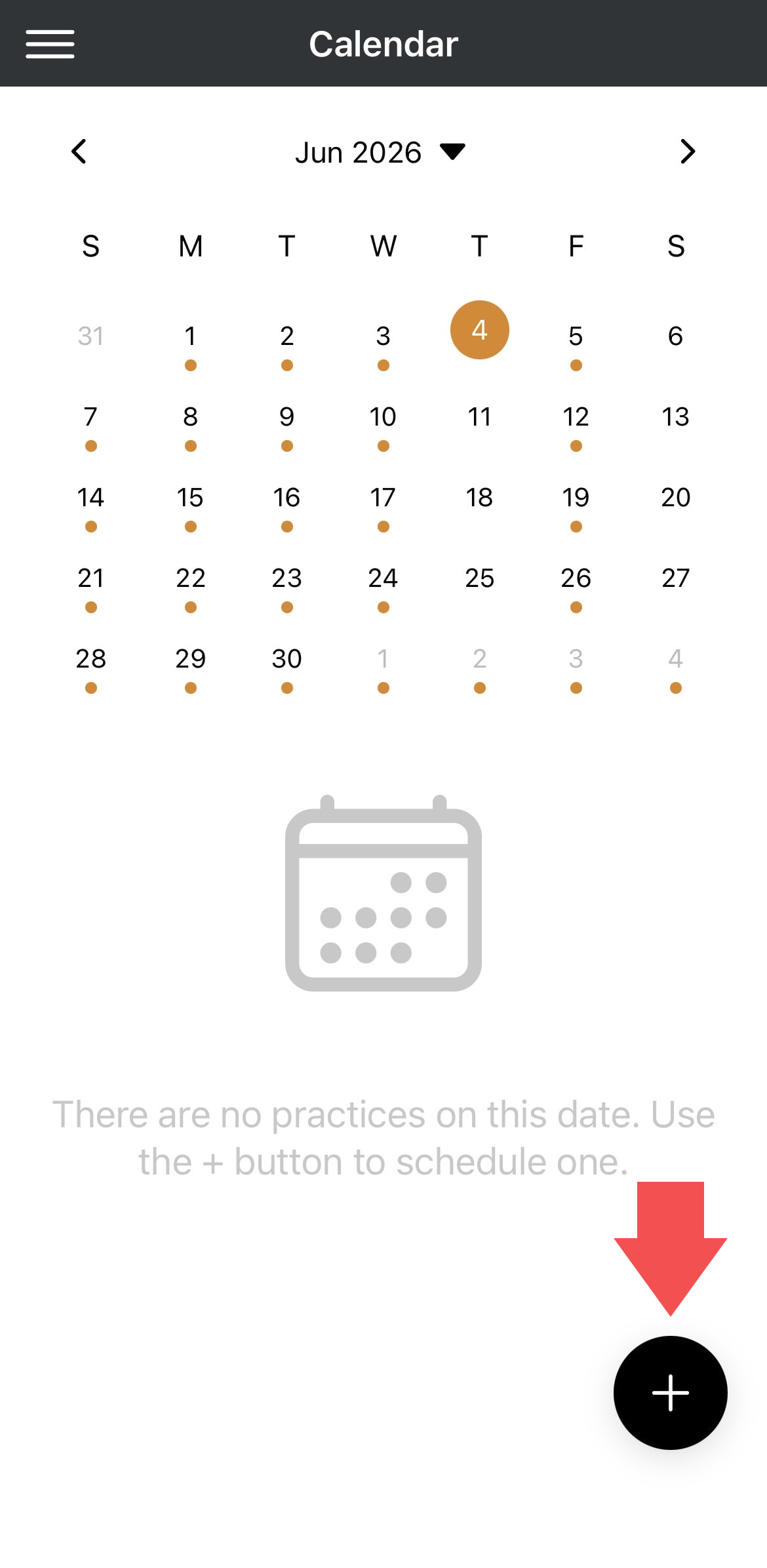
- Select a date for your session.
- Tap the + icon in the lower right corner.
- Select Schedule Practice from the menu that appears.
On the Schedule page:
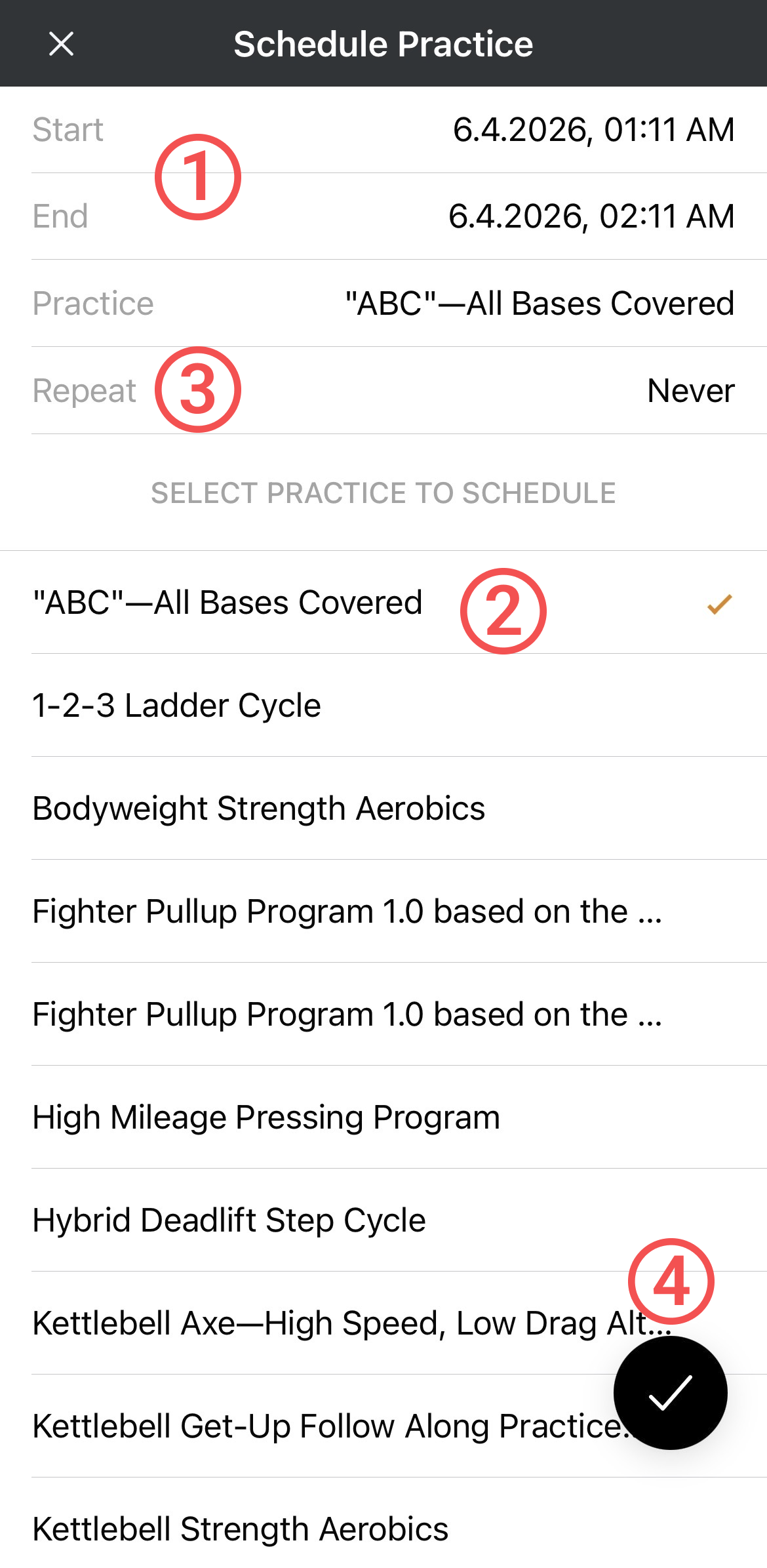
- Set a start and end time for your practice session.
- Choose a practice from the list of available practices.
- Choose to Repeat the session if you want to repeat it on a set schedule: Daily to repeat it every day at the same time, or Weekly to set up specific days/times. Then, set an end date for the repeat schedule.
- Confirm with the check mark and the session(s) will be added to your calendar.
Editing or Deleting a Scheduled Session
- Select Calendar from the main menu or Dashboard.
On the Calendar:
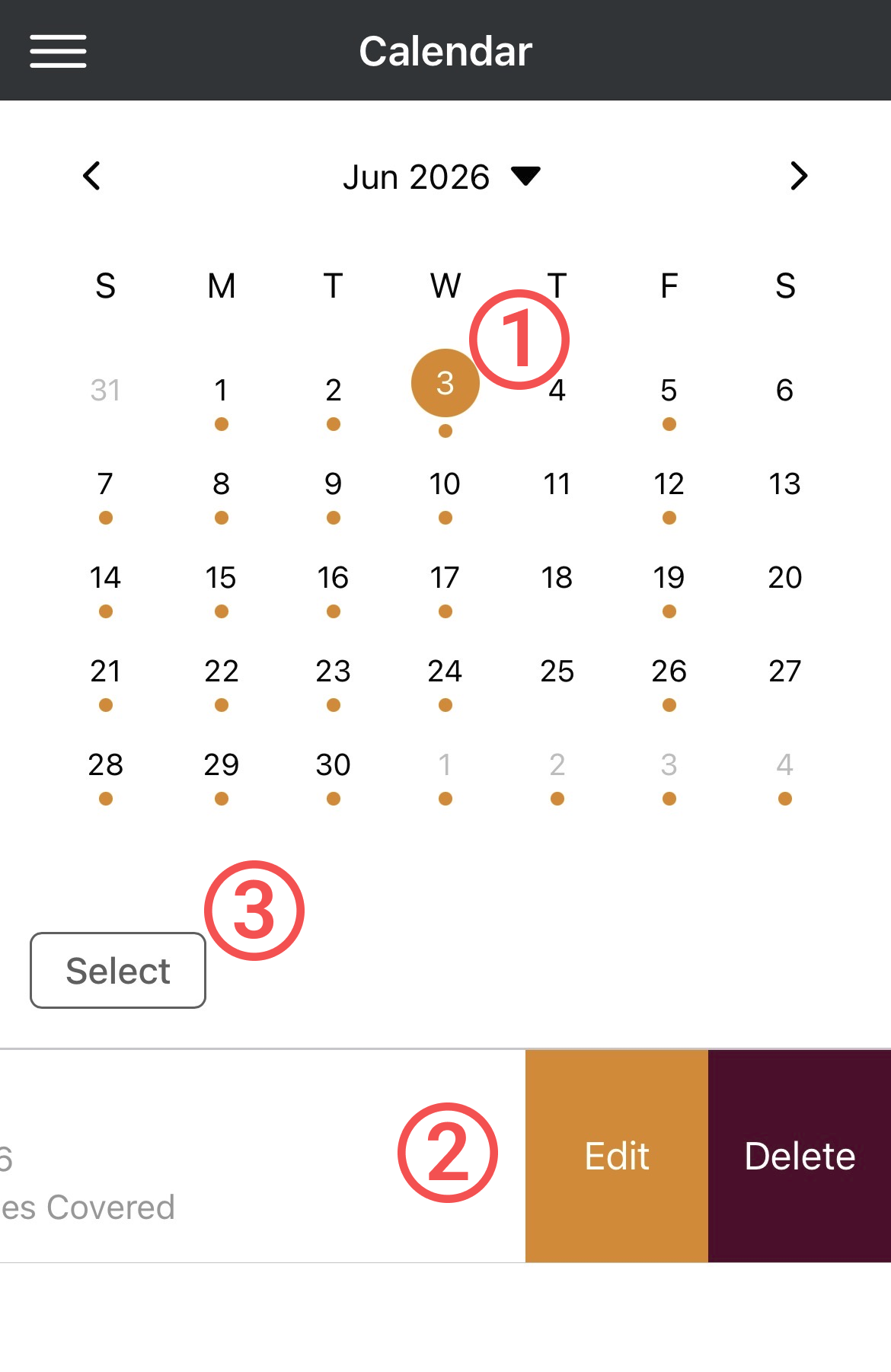
- Select the date of your scheduled event.
- Swipe left on the practice and tap Edit to change the date/time of your session, or Delete to remove it from your Calendar.
- Use the SELECT button if you want to bulk delete more than one, or all, scheduled events in a month.
Scheduling a Program
- Select Calendar from the main menu or Dashboard.
- Tap the + icon in the lower right corner of your Calendar page.
- Select Schedule Program from the options that appear.
- Choose the program you want to schedule and continue.
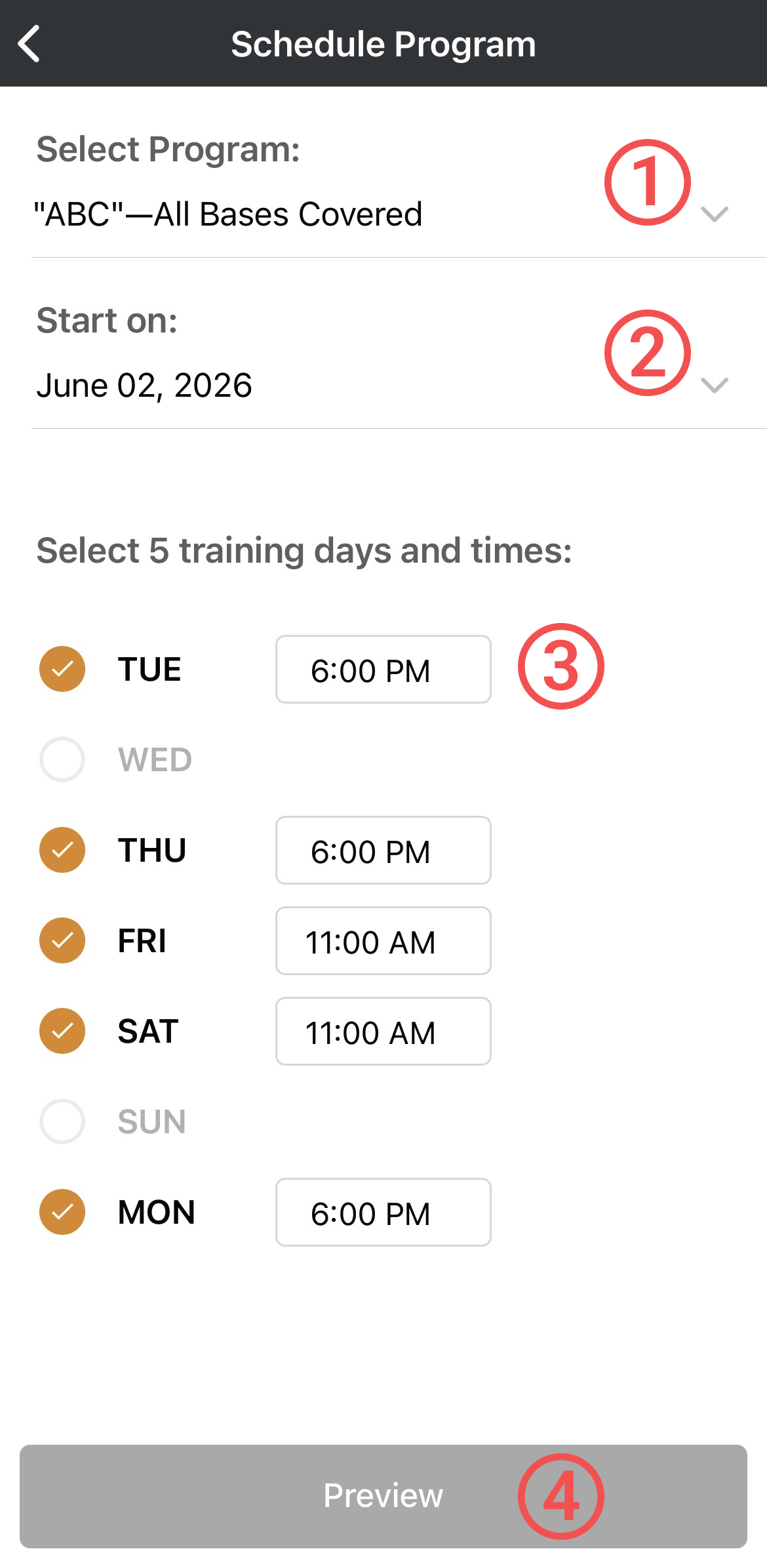
- Change the program you're scheduling if needed.
- Select a start date for the first session of the program. The current day is chosen by default.
- Select your weekly training days and set the time for each day. This will set up your template for each week, but you can make changes to individual session days/times on the preview page.
- Tap the Preview button.
The preview screen will display all of the program's practices on the calendar.
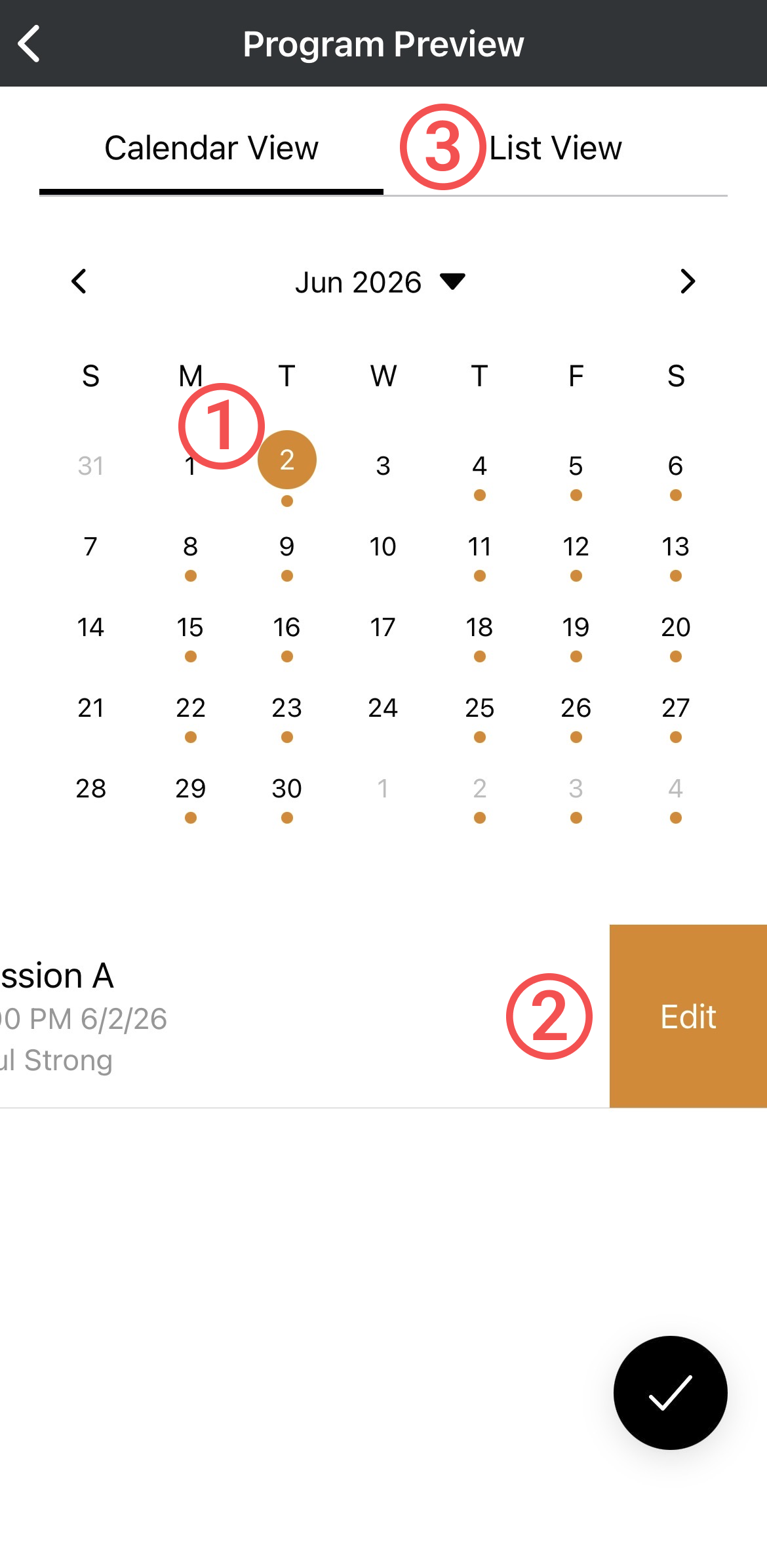
- Tap a day with an event to view practice details.
- Swipe left on an event to edit the day/time.
- Select List View if you want to see all the programs weeks and sessions in a list.
In List View:
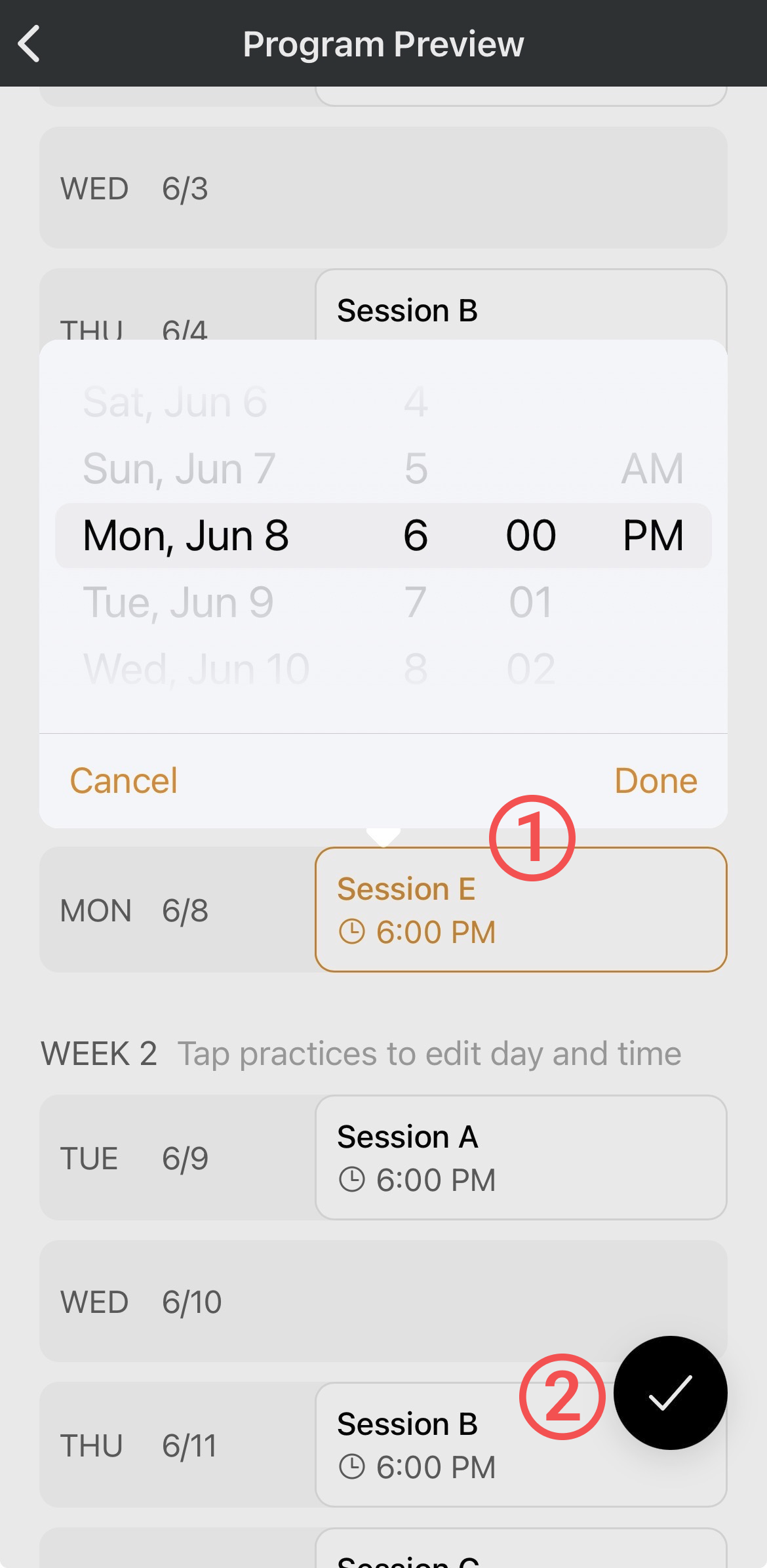
- Tap an event if you wish to change a session's day or time.
- Tap the check mark to confirm your choices, and all the program's sessions will be added to your calendar.
Was this article helpful?
That’s Great!
Thank you for your feedback
Sorry! We couldn't be helpful
Thank you for your feedback
Feedback sent
We appreciate your effort and will try to fix the article