TABLE OF CONTENTS
Entering Results on Mobile
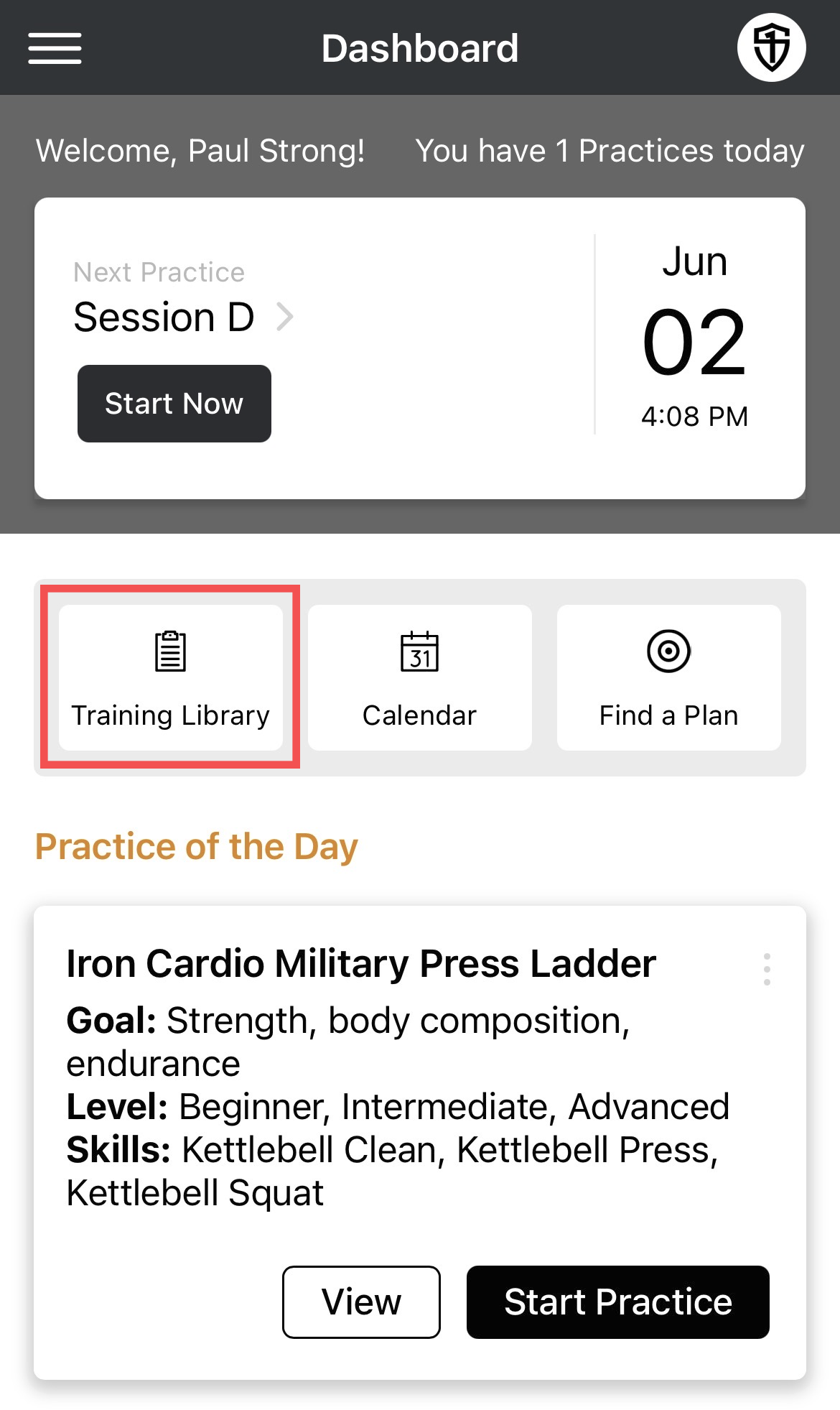
- From the Dashboard, tap the Training Library button.
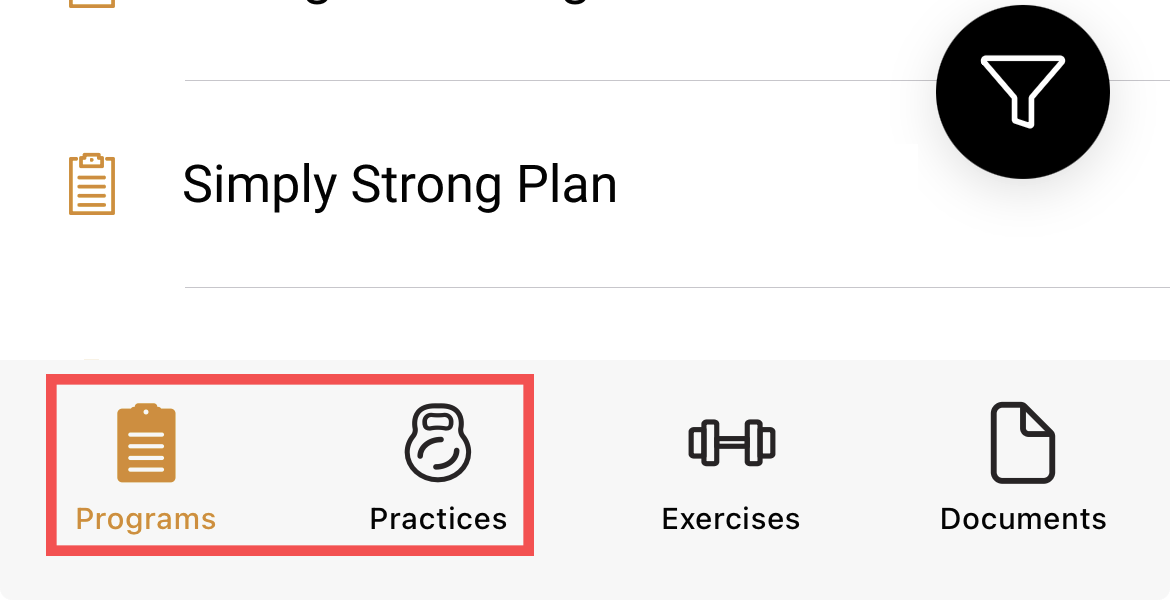
- The bottom navigation tab allows you to move between categories.
- Select Practices if you're looking for a single practice session, or Programs if you wish to enter results for a practice session in a full program.
- If you selected Programs, as we have, tap your program and then select the program session you wish to enter results for.
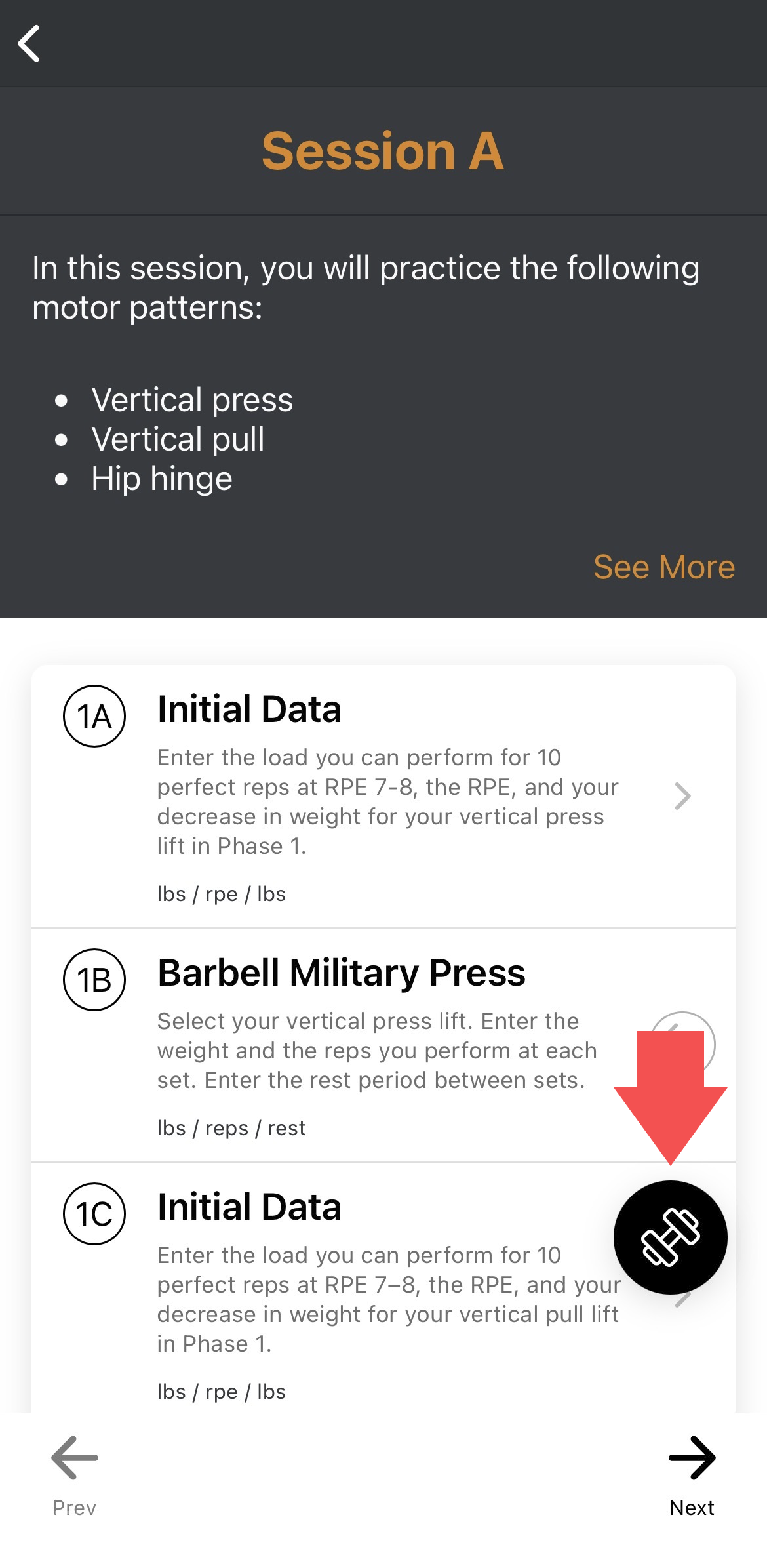
- On the practice overview, tap the Weight icon in the lower right corner of the screen.
- Select Start Practice from the menu that appears.
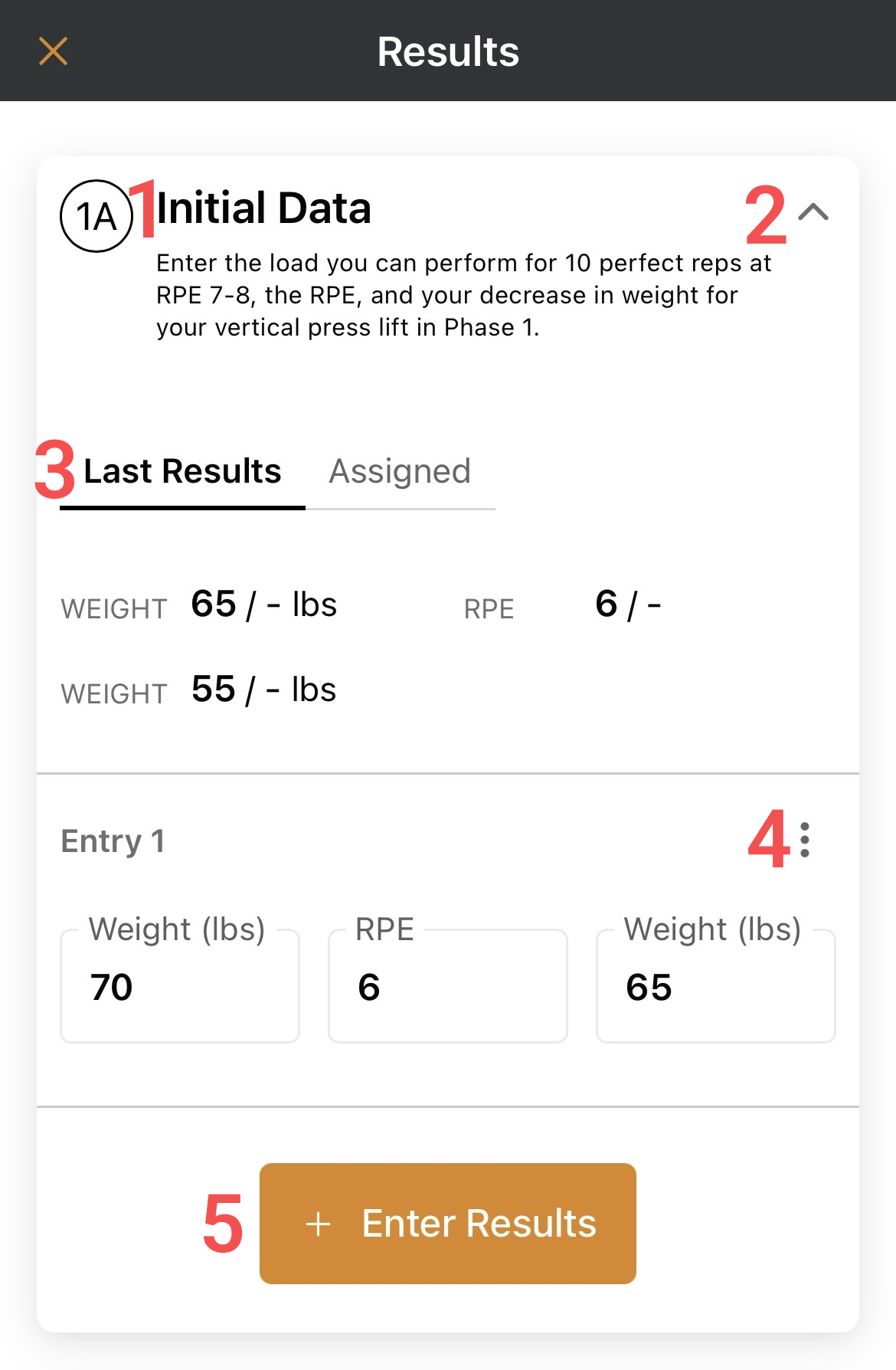
- Tap the exercise name to see more details, such as a demonstration video and written instructions.
- Expand or collapse each exercise with the chevron icon to the right of the exercise name.
- Last results are displayed below the exercise name (if the same practice has been performed before), as well as the assigned values (if there are any).
- Tap the kabob to mark a set of results as a personal best or delete the entry. You can also select to view all your personal bests in this menu or from your profile.
- Click the Enter Results button to add a new entry. Tap into a field and use your keyboard to record the results, then Save. You may add as many entries as you need.
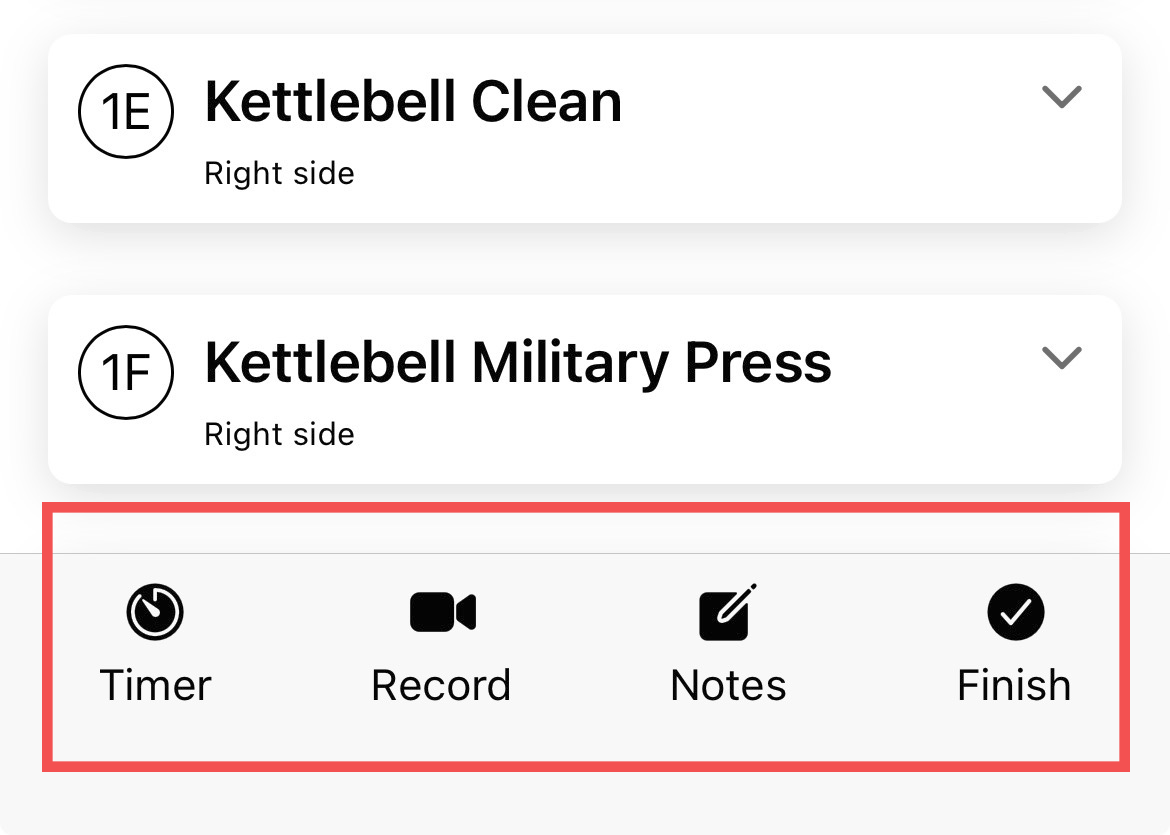
- The bottom navigation tab allows you to access the timer, record a video, or make notes about the session.
- Tap the Finish button when you are done.
- The results can then be accessed from the Calendar if you need to review or edit them.
Selecting Alternative Exercises
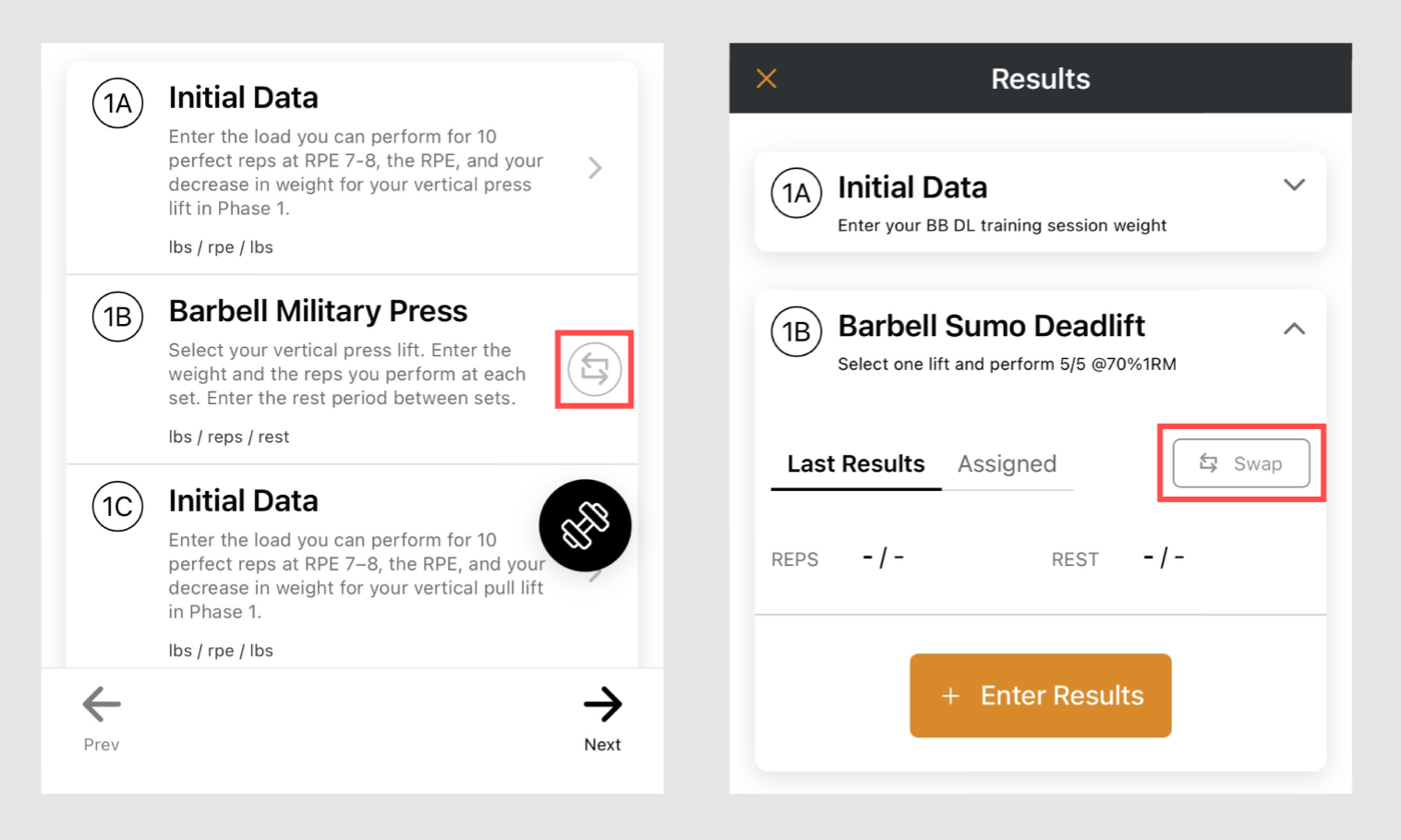
- Some exercises will have alternatives available. This is indicated by a Swap button to the right of the exercise name.
- Tap the swap button to see the list of alternative exercises.
- Select your preferred variation or cancel.
Entering Results for a Scheduled Session
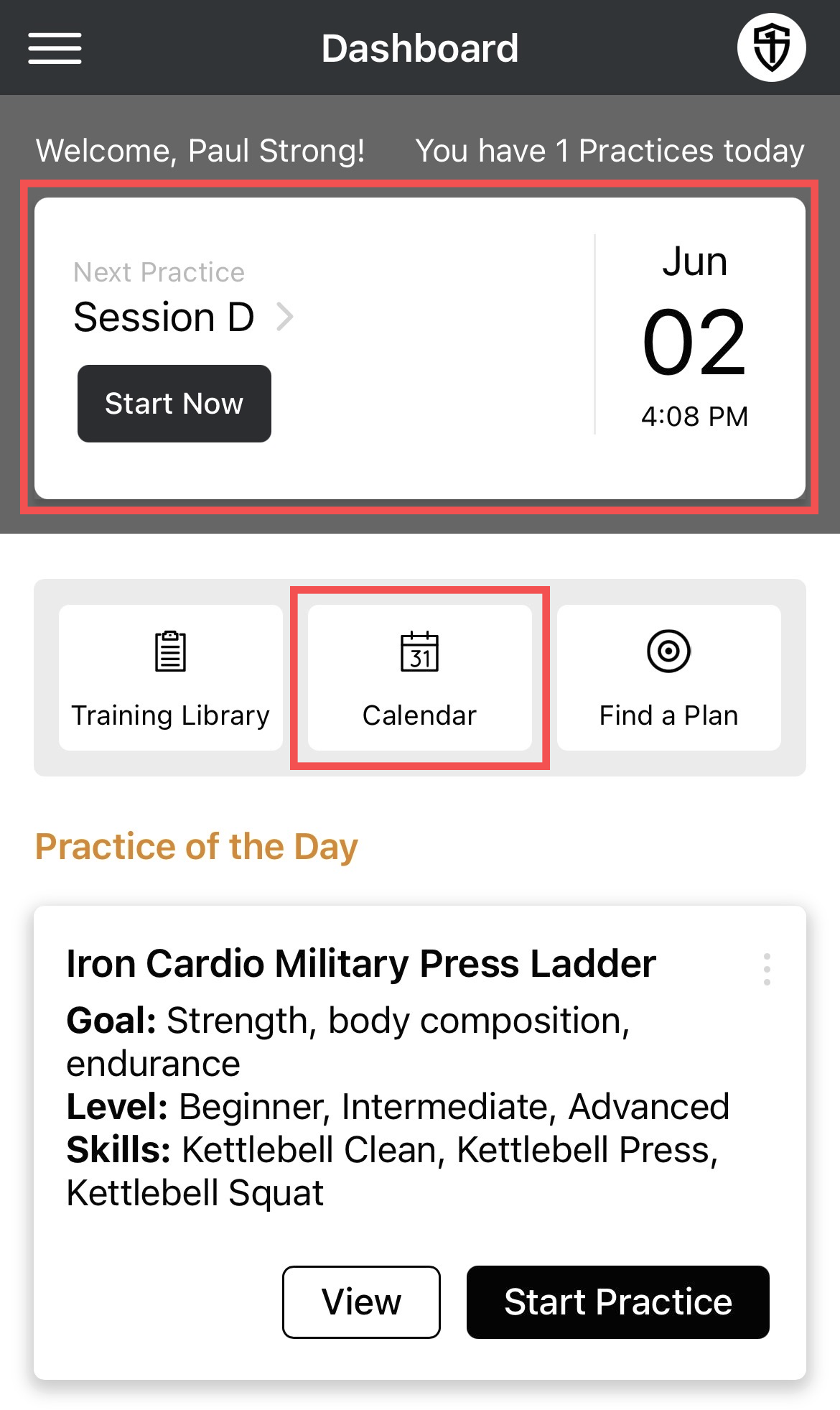
- To enter results for a scheduled practice session, tap the Calendar button on the Dashboard. (If your session is scheduled for the current day, you can select it at the top of the page, where it will be displayed).
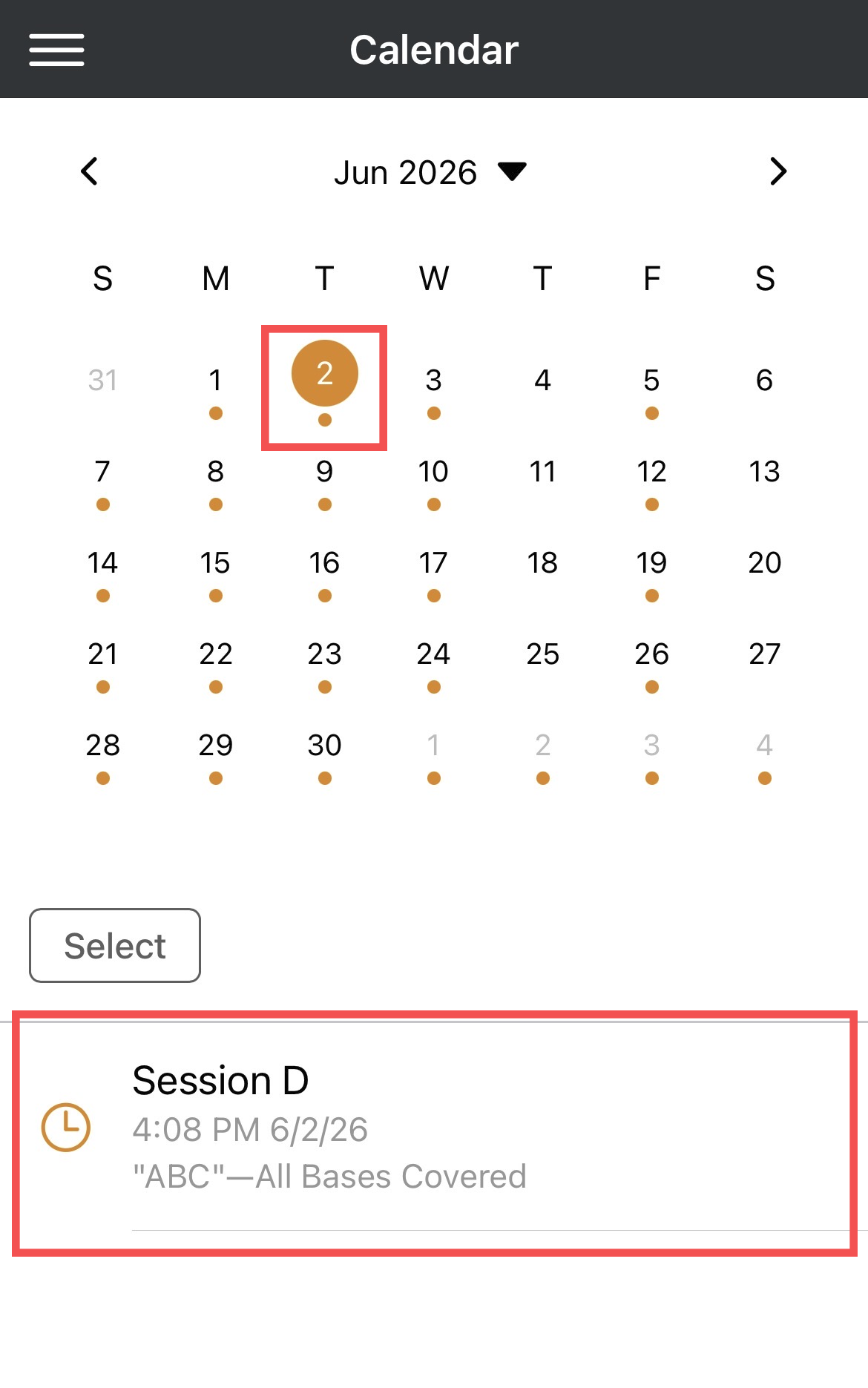
- Select the date with your scheduled event.
- Tap the practice session.
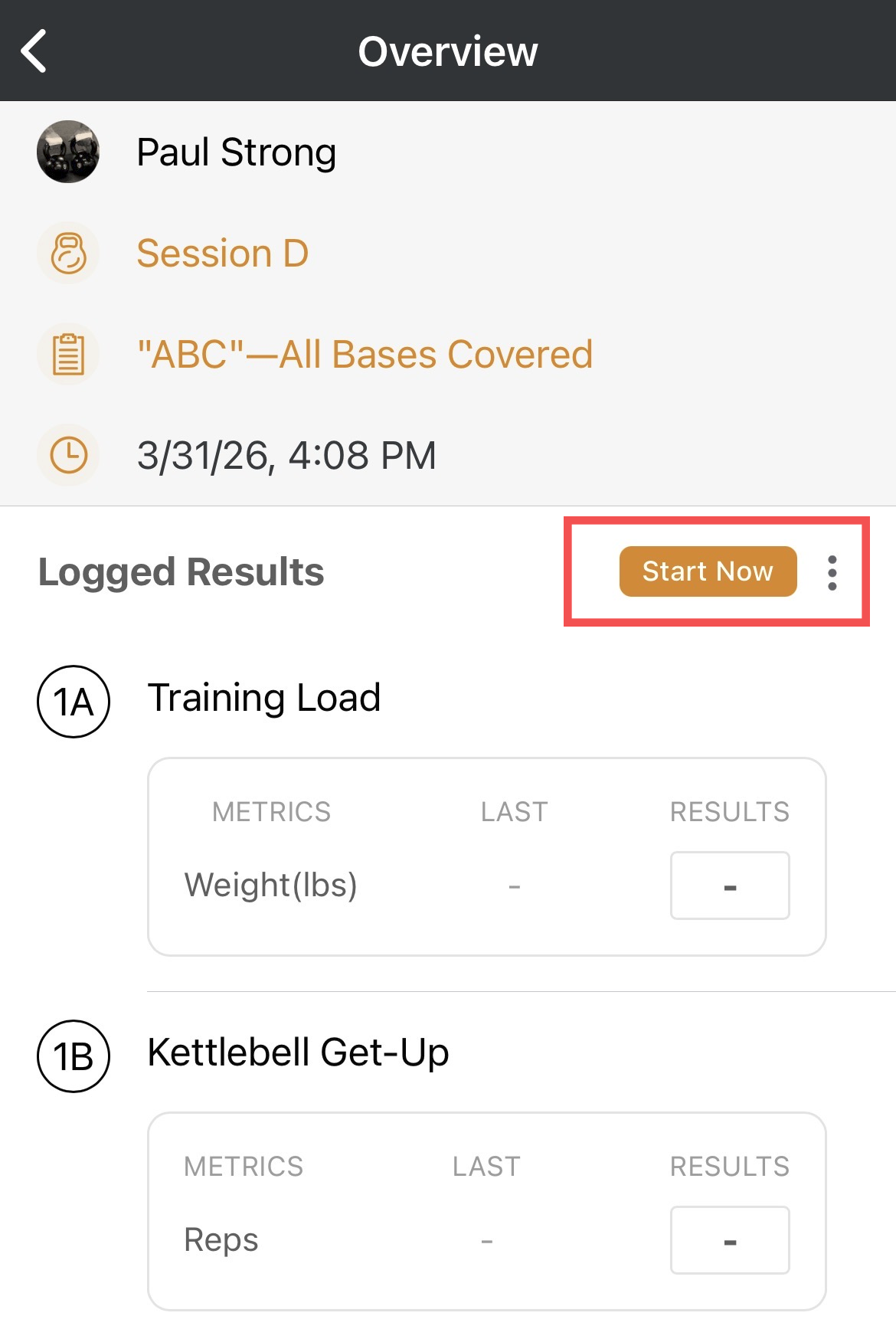
- Use the Start Now button on the session event page.
Was this article helpful?
That’s Great!
Thank you for your feedback
Sorry! We couldn't be helpful
Thank you for your feedback
Feedback sent
We appreciate your effort and will try to fix the article